
DocsShopware 6
Integration guide
Shopware 6 merchant setup
Connect a standard Shopware 6 shop to Pico with Admin API and Store API credentials. No custom plugin or database access is required.
What Pico needs
| Credential | Where in Shopware | Used for |
|---|---|---|
| Shop base URL | Sales channel domain | Prefix for /api and /store-api |
| Integration access key ID + secret | Settings → System → Integrations | Admin API OAuth (client_credentials) |
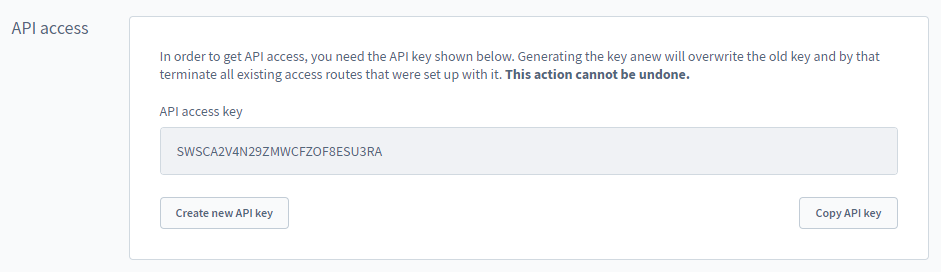
| Sales channel access key | Settings → Sales Channels → your channel → API access | Store API header sw-access-key |
Create an Admin API integration
- Sign in to Shopware Admin (/admin).
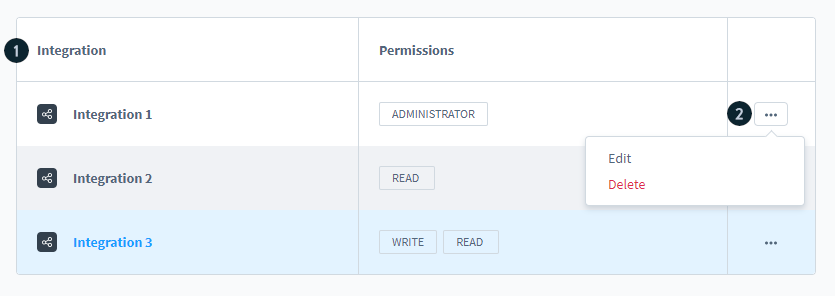
- Open Settings → System → Integrations.
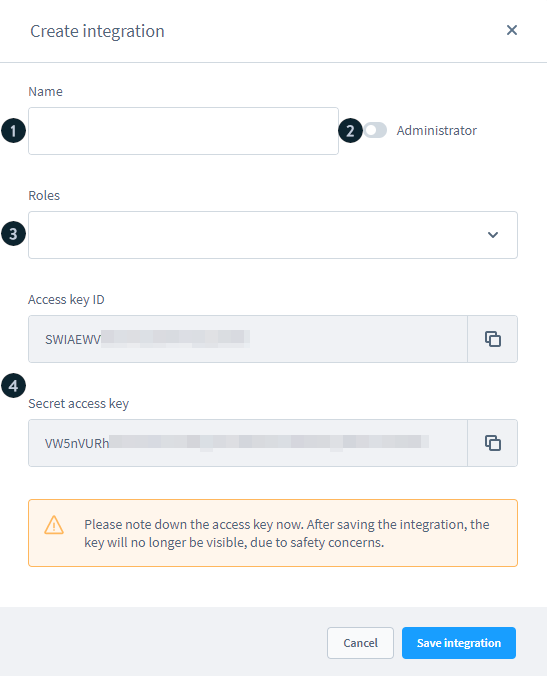
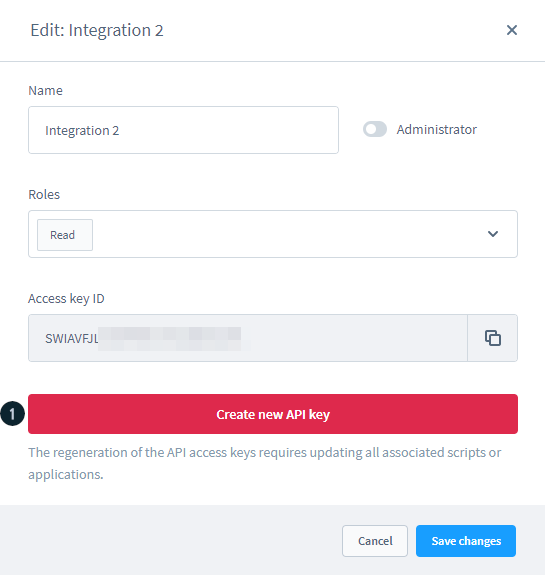
- Create an integration (admin access recommended for catalog read).
- Copy the Access key ID and Secret access key immediately. The secret is shown once.
Copy the sales channel access key
- Open Settings → Sales Channels (or the Sales Channels item in the admin sidebar).
- Select the storefront channel Pico should use.
- Copy the Access key from the API access section.
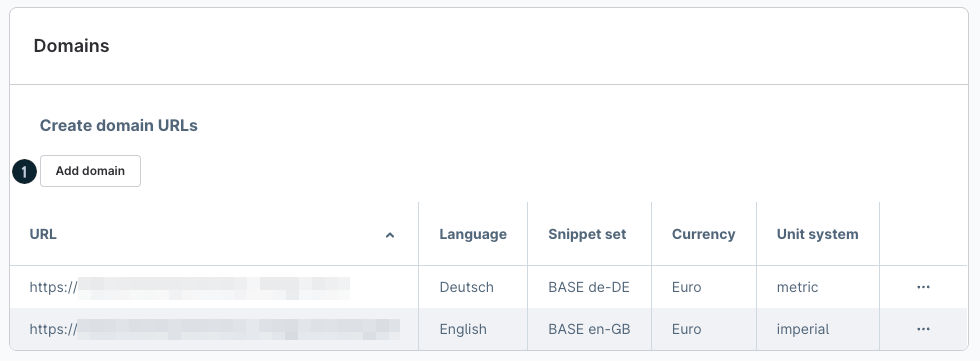
- Confirm a domain on that channel matches the base URL you will enter in Pico.
Connect in Pico
- Open Integrations
Dashboard → Integrations → platform Shopware 6.
- Enter credentials
Base URL, Admin key ID/secret, and optional sales channel key.
- Test connection
Pico checks Admin OAuth + version, then Store API context when a sales channel key is present.
- Sync catalog
Catalog → Sync imports parent products (variants, prices, stock, media, categories when present) through the Admin API.
- Embed the widget
Use the store’s public_widget_id on the storefront (below).
Widget embed
Pico does not require a Shopware plugin for the pilot. Add the public script to the active storefront theme (the compiled theme path may be a Composer package under vendor/…, not only custom/static-plugins).
<script
  src="https://YOUR_PICO_API_HOST/pico-widget.js"
  data-public-widget-id="pw_..."
  data-api-url="https://YOUR_PICO_API_HOST/api/v1"
  defer
></script>
Add the shop origin to Pico API FRONTEND_URLS. Clear Shopware/HTTP cache after theme changes.
API (headless)
POST /api/v1/stores
{
  "name": "My Shop",
  "platform": "shopware6",
  "credentials": {
    "base_url": "https://shop.example.com",
    "access_key_id": "SWIA...",
    "secret_access_key": "...",
    "sales_channel_access_key": "SWSC...",
    "storefront_url": "https://shop.example.com"
  }
}

POST /api/v1/stores/{storeId}/test
POST /api/v1/catalog/{storeId}/sync
Update credentials later with PATCH /api/v1/stores/{storeId}.
Milestone limits
- Catalog connection, sync, and product discovery are supported.
- Add to cart / order writes are disabled even if a sales channel key is configured.
- Pico does not require custom fields or merchant-specific plugins for the baseline integration.
- Failures surface as connection/sync errors. Configured Shopware stores never silently fall back to mock catalog data.
Screenshot sources
Admin UI screenshots are from Shopware’s official documentation: